Invites and the Billing role
Guide
People join a team workspace by invitation. An owner or admin sends it from Members, under Subscription in the sidebar. The invited person gets an email, signs in with that address, and accepts.
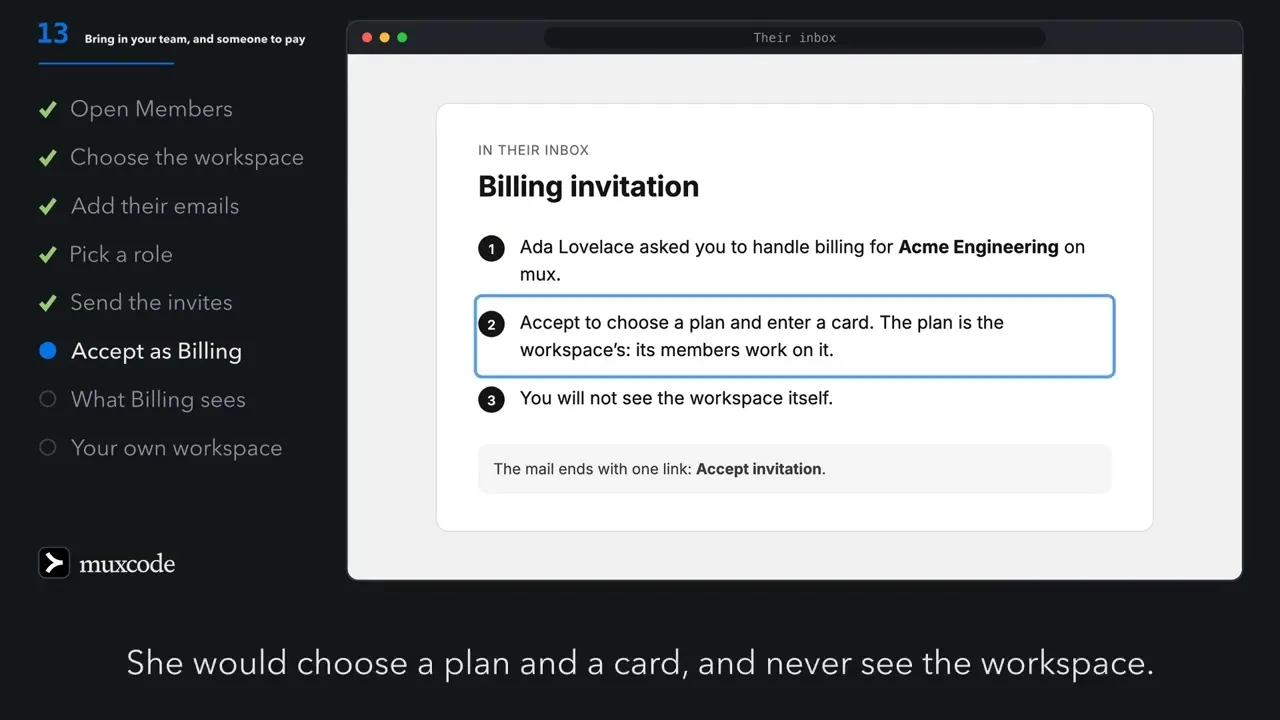
A billing member is a person you invite only to pay. They choose a plan and enter a card. They never see the workspace’s code, tasks or members. Invite one when someone else pays for mux, such as a finance team, or when you cannot pay yourself.
Each person in a team has one role. You choose it when you invite them, and it cannot change after they join.
| Role | What they may do |
|---|---|
| Owner | Everything an admin may do, and remove people. The person who made the team is its owner. |
| Admin | Use the workspace, invite people, cancel invitations, sign out members’ Macs, and make coworkers and Reviewer. |
| Member | Use the workspace’s code index, tasks and coworkers. |
| Billing | Pay for the workspace’s plan, and nothing else. |
The invite dialog offers Member, Admin and Billing. A line under Role says what each may do.
Inside a workspace, its owner can narrow or widen what one member may do there. On Access keys, the Workspace access card’s Add person sets a member’s role in that workspace: Viewer, Editor, Agent or Owner. The person must already be a member of the team. To change a role, add the person again with the new one. An owner has no Revoke, so this is the only way to change an owner’s role. A member of the team keeps their access to its workspace while they stay in the team, so their row has no Revoke either: to take it away, remove them from the team.
Invite people
Section titled “Invite people”- Open Members and press Invite members. Only owners and admins see the button.
- Under Workspace, choose where they join (see below).
- Under Emails, enter one or more addresses. Separate them with commas or new lines. You can send up to 20 at a time.
- Under Role, choose Member, Admin or Billing.
- Press Send invites.
mux checks every field before it makes or sends anything. If one is wrong, the dialog says which and keeps what you typed. When the invitations go out, the page says “Invitations sent.” and lists them under a heading that counts them, such as 2 invitations waiting, each with the day it expires.
What you will see1 invitation waiting on Members, with each address, its role and Expires and a date.
What Workspace offers
Section titled “What Workspace offers”- A team workspace you own or administer. People join it at the role you choose.
- New team workspace. mux makes it in the same send. Give it a name of up to 64 characters. Pro and the trial include one team workspace, Pro+ twenty-five (what each plan includes).
- Make your workspace a team workspace. It appears when your own workspace is open and you are on Pro, Pro+ or a trial. Give the team a name. Your workspace becomes the team’s in place: its code index, GitHub connection, Reviewer and coworkers stay and keep running. You get a new private workspace, and your plan stays yours.
- Your workspace (yours: a billing member only). It appears when your own workspace is open. Your own workspace takes no one but a billing member. Use it to have someone pay for your plan.
On Hobby, you cannot make a team workspace: New team workspace shows Upgrade to Pro in place of a name. If you are on Hobby and have no team, the dialog opens on your own workspace with Billing chosen, so you can invite someone to pay for your plan.
Accept an invitation
Section titled “Accept an invitation”The invitation comes by email, with an Accept invitation button. Its subject is “You’ve been invited to a team on mux”, or, for a billing member, “You’ve been asked to handle billing for a mux workspace” or “You’ve been asked to handle billing on mux”. It lasts 48 hours.
- Press Accept invitation. mux asks you to sign in, or to sign up if you have no account. Use the address the invitation went to: an invitation opens only for that address.
- The page reads Join and the team’s name, or Handle billing for and a name. It says who invited you and at which role.
- Press Accept, or Decline.
A member or admin lands on their workspaces with “Invitation accepted.” and can open the team’s workspace there. A billing member lands on the Billing page they were asked to pay from.
Invitations waiting
Section titled “Invitations waiting”An owner or admin can press Cancel next to a pending invitation.
To send an invitation again, invite the same address at the same role. mux sends the email again and gives the invitation two more days. It sends that email at most once every ten minutes: a resend sooner still adds the days but sends nothing. At another role, mux refuses and names the role it waits at: cancel that invitation first.
Remove someone
Section titled “Remove someone”An owner removes someone from Members with Remove, and confirms. Removal:
- takes away their access to every workspace in the team;
- revokes the access keys they made there, which signs their Macs out.
Nobody can remove an owner from Members, and nobody leaves a team on their own: ask an owner to remove you. Whoever holds the plan’s billing cannot be removed until they hand it to someone else (see below); Members says so if you try.
To sign out one Mac and keep the person, press Revoke next to it under their name. You can revoke your own; owners and admins can revoke anyone’s.
The Billing role
Section titled “The Billing role”A billing member pays for one plan and holds nothing else. They have no access to the workspace’s code index, tasks, coworkers or member list, and no Mac of theirs signs in to it. Any owner or admin may invite one, on any plan: Hobby, a trial, or after a trial ends.
What they pay for depends on where you invite them:
- In a team workspace, they buy the team a plan of its own. Everyone in the team works on that plan, and nobody’s own plan is charged for work there. When the team’s plan ends, the team goes back to its members’ own plans.
- In your own workspace, they buy your plan. It is the same plan you would buy yourself, so it covers you everywhere in mux, in other teams too. The invitation and their Billing page name you.
On their Billing page, a line says whom they pay for and that they cannot open the workspace. They choose Pro or Pro+, enter a card through Polar, and can later change the plan, cancel it, or open Invoices and receipts.
A billing member also gets a workspace of their own, as every account does. To come back to a plan they pay for, they open Manage workspaces… from the workspace switcher. Workspaces you pay for lists each one, with Open billing.
What you will seeOnce they pay, the Billing page of the person who invited them says the billing member’s name and “pays for this workspace’s plan”, and, under each plan, “manages this plan.”
An owner can also buy a team its plan without a billing member: on the team’s Billing page, Pay for everyone here offers Buy Pro for the team and Buy Pro+ for the team. The owner then holds its billing and can hand it on.
Hand billing over
Section titled “Hand billing over”One person holds a plan’s billing: they bought it, and only they change it. To pass it on, they open Billing, find Billing owner, choose a person, and press Transfer billing ownership. They lose access to the plan’s Polar billing, and the new holder gains it.
- An owner can hand billing to another owner or to a billing member.
- A billing member can hand it to another billing member or to an owner.
- The person must have a verified email address.
Hand it over when a billing member should start paying for a plan an owner bought, or before the holder is removed. If an owner’s plan has lapsed and a billing member tries to buy one, the billing member sees who holds the billing and is asked to get it handed over first.
When something is off
Section titled “When something is off”| What you see | What to do |
|---|---|
| No Invite members button | Only owners and admins invite. Ask one of them. |
| “People join a team workspace; your own takes only a billing member.” | Choose a team workspace or New team workspace, or set Role to Billing. |
| “Team workspaces come with Pro.” | Upgrade to Pro, or invite a billing member to your own workspace. |
| “That is your own address: you are in this workspace already.” | Take your address out and send again. |
| “Send at most 20 invitations at a time.” | Split the list into two sends. |
| “Could not send the invitation. The person may already be a member.” | Check Members: they may have joined already. |
| “address already has an invitation as role.” | Cancel it under the invitations waiting, then invite them at the new role. |
| “This invitation is invalid, expired, or not addressed to you.” | Sign in with the address it went to, or ask for a new invitation if 48 hours have passed. |
| “They hold this plan’s billing.” | Ask them to hand it over under Billing owner on their Billing page, then remove them. |
| “Name holds this plan’s billing. Ask them to hand it to you from their Billing page.” | Ask that person to use Billing owner on their Billing page. |